.png?width=1800&height=150&name=Knowledge%20Base%20footer%20logo%20(2).png)
How to Join a Virtual Community Centre Session
Follow these simple steps to join a Virtual Community Centre club and connect with others online.
Option 1: Join from the Home Page
Step 1: Find a session to join
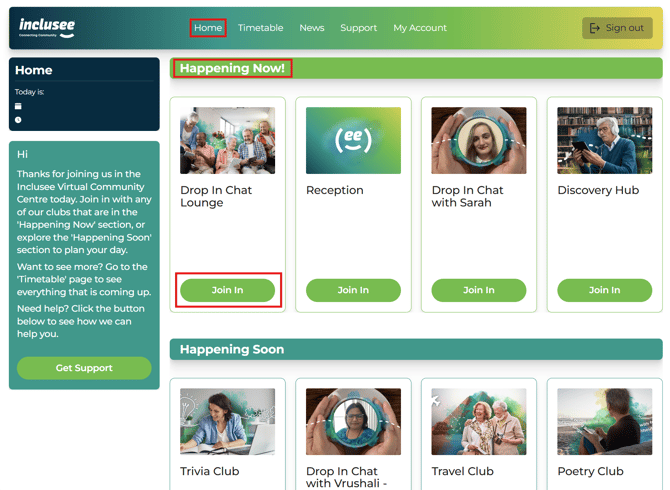
Go to the Home page.
Under Happening Now, you will see the sessions that are currently running.
Click the Join In button on the session you would like to join.
Option 2: Join from the Timetable
Step 1: Open the timetable
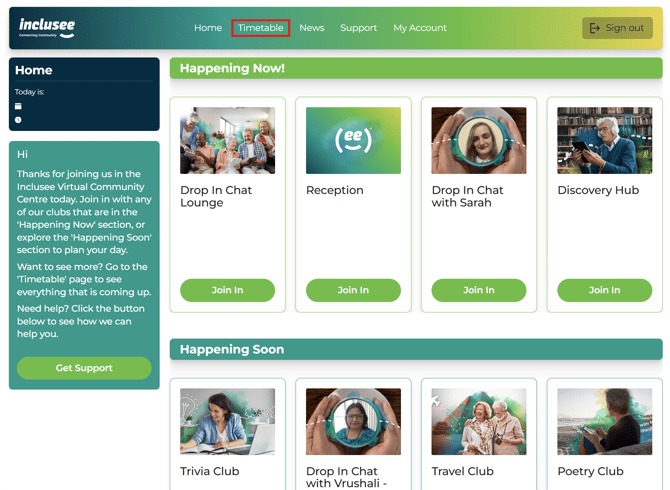
Click the Timetable tab in the navigation bar at the top of the screen.
Step 2: Choose a session
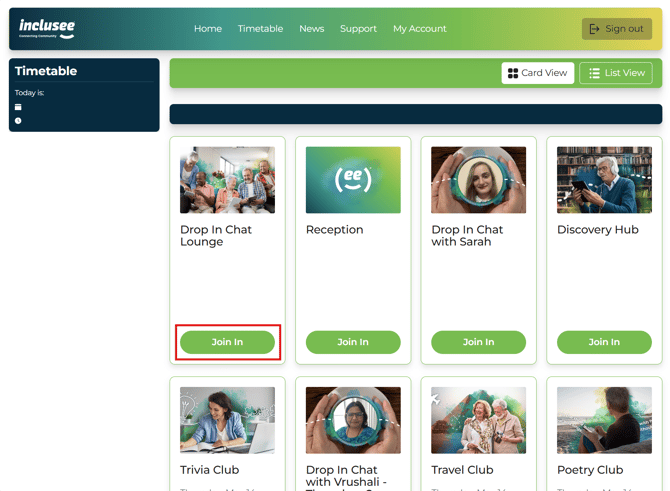
Find the session you would like to join.
Click the Join In button.
Continue joining your session
Step 3: Open Zoom
After clicking Join In, Zoom will begin to open.
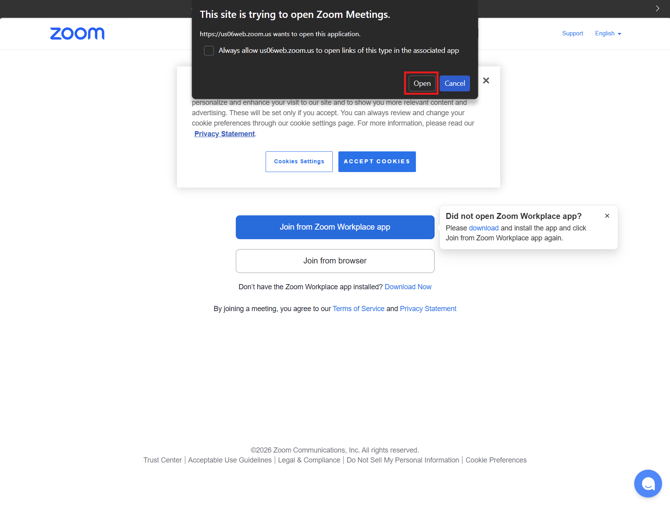
You may see a message asking to open Zoom
If this appears, you can:
- Click Open to continue, or
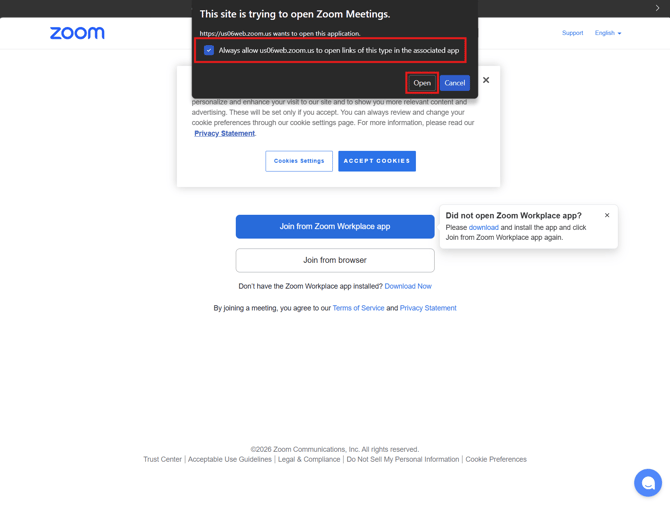
- Tick the box to always allow this, so Zoom opens automatically next time and then click Open to continue. If you select this option, you won't see this screen asking for permission again.
Step 4: Check your camera and microphone
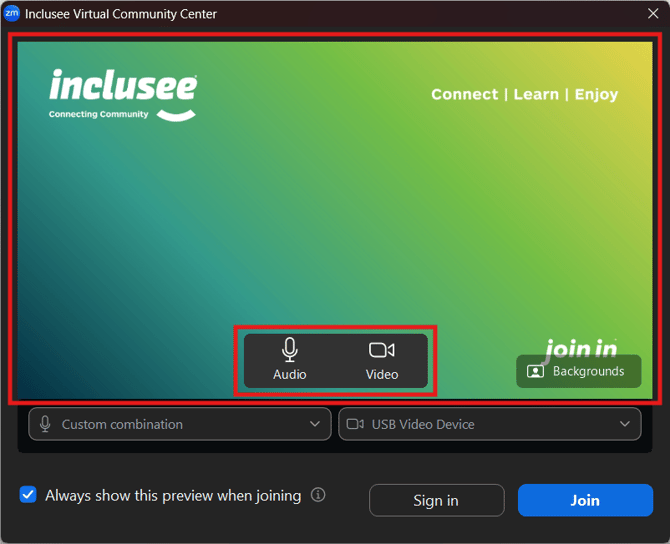
You will see the Zoom preview screen.
Here you can:
- See what your camera shows
- Turn your camera on or off
- Mute or unmute your microphone
Step 5: Join the session
When you are ready, click Join.
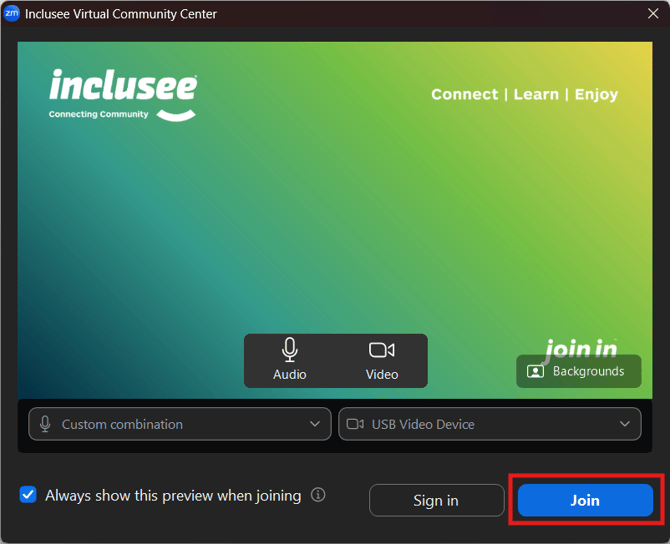 You will be connected to the Virtual Community Centre lobby, where one of our friendly team members will welcome you.