Resetting Your Password
To reset your Inclusee password, follow the three steps below. Before you begin, make sure you have access to the email address registered to your Inclusee account.
The password reset link expires after 24 hours. If your link has expired, return to the login screen and request a new one.
Step 1: Request a password reset
-
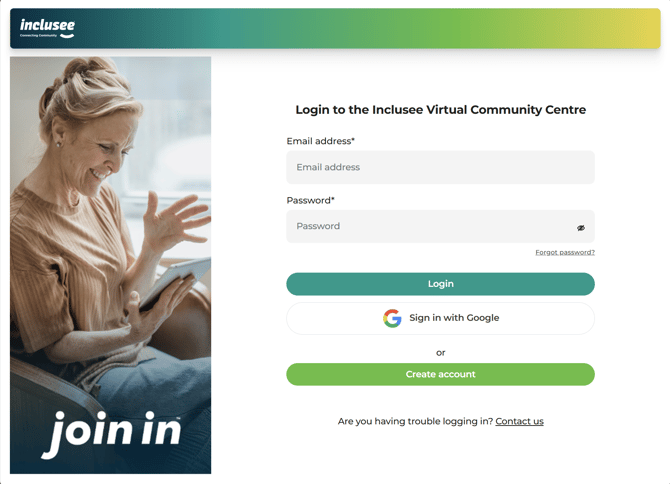
Go to the Inclusee login screen.
-
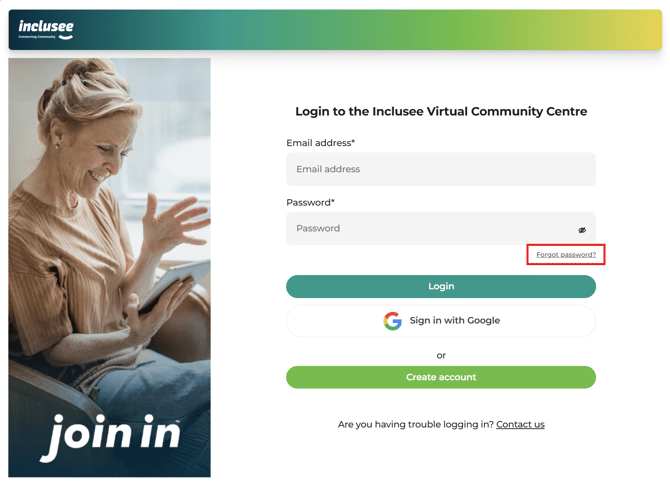
Click Forgot Password.
- Enter the email address you normally use to log in.
This must be the same email address you provided to Inclusee.
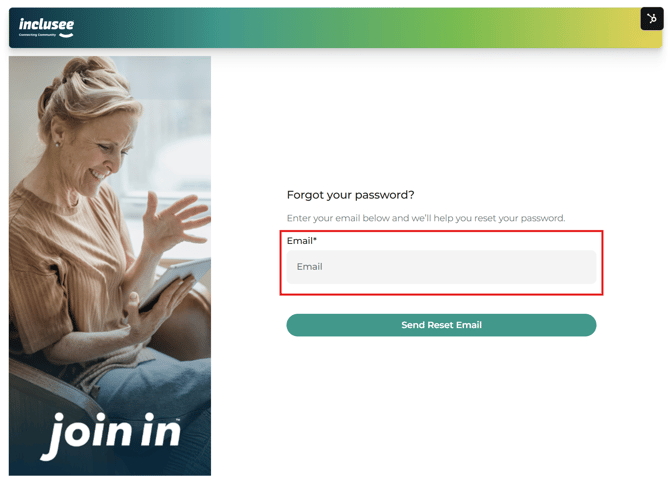
- Click Send Reset Link. A password reset email will be sent to that address.
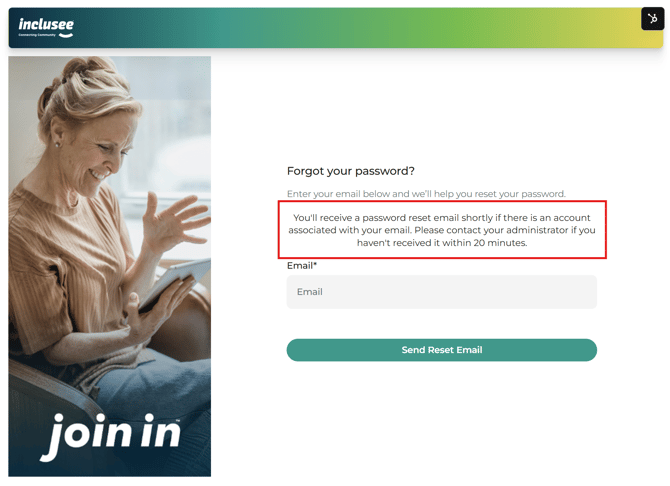
Step 2: Open the password reset email
- Check your email inbox for a message from Inclusee. It will look similar to the example below:
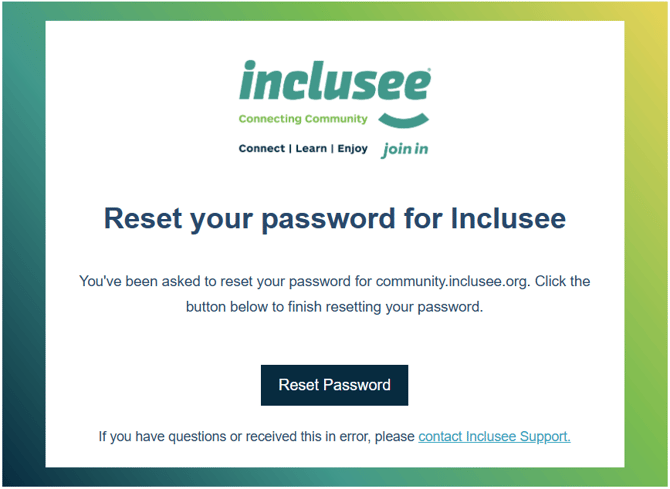
- Click on Reset Password.
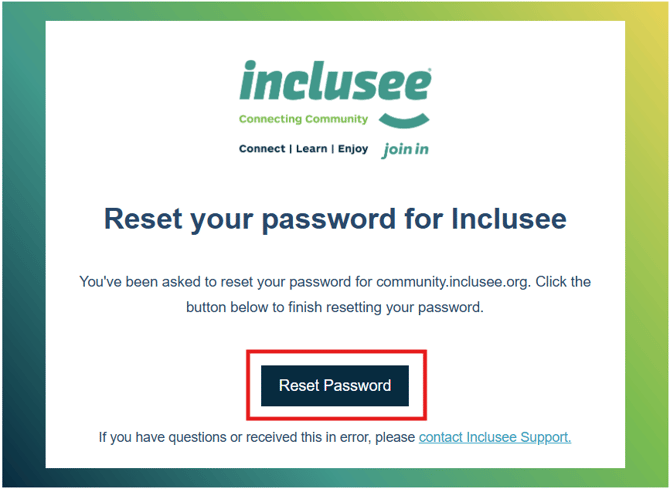
- The password reset page opens, where you can set your new password.
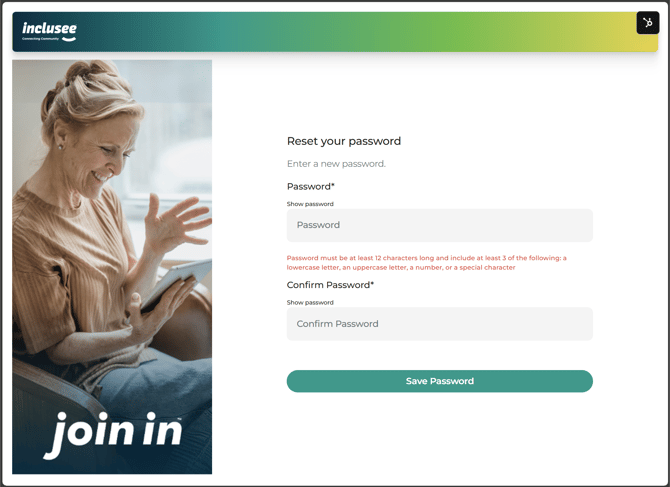
Step 3: Set your new password
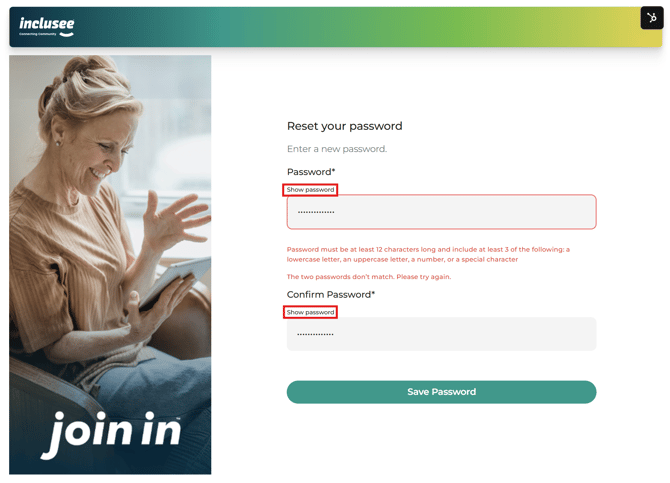
- Enter your new password in both the Password and Confirm Password fields.
Your new password must:
- Be at least 12 characters long.
- Include at least three of the following:
- Lowercase letters (a-z)
- Uppercase letters (A-Z)
- Numbers (0-9)
- Special characters (for example: ! @ # $)
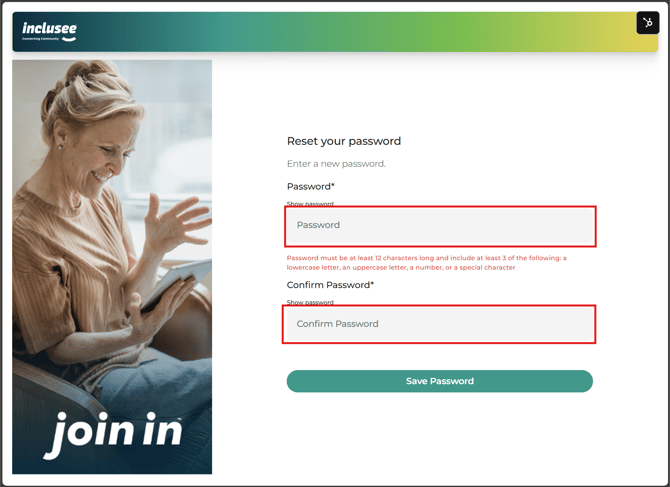
- Click on Save Password.
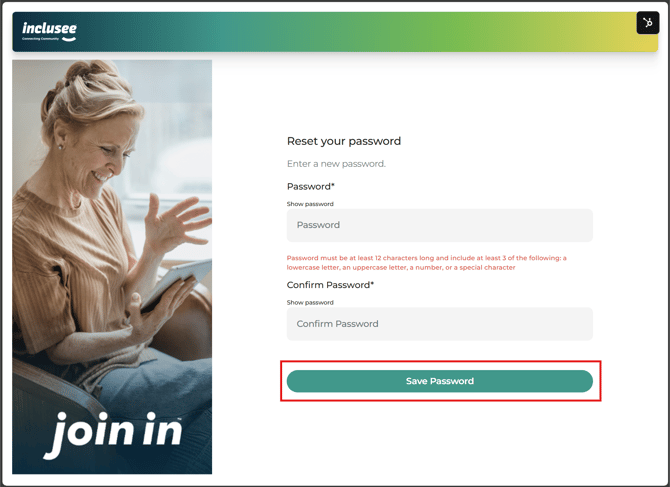
- You are returned to the login screen and can sign in with your new password.
Troubleshooting and common issues
I didn't receive the password reset email
- Make sure the email address you entered matches the email we have on record for your Inclusee account.
- Check your junk or spam folder, as the email may have been filtered there.
- If you still cannot find the email, return to the login screen and request a new reset link. If the issue persists, please contact Inclusee support for further assistance.
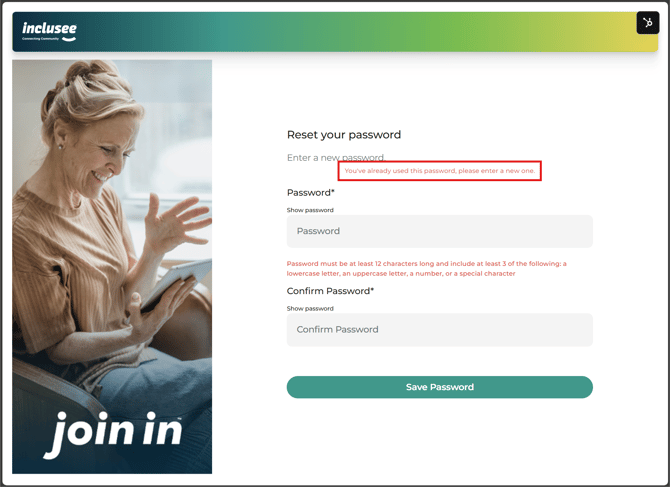
I see an error saying "You've already used this password, please enter a new one"
-
This means the password you entered has been used before.
- Please choose a different password that you haven't used previously. Refer to the password requirements in Step 3 above for guidance on creating a valid new password.
I see an error saying "The two passwords don't match. Please try again."
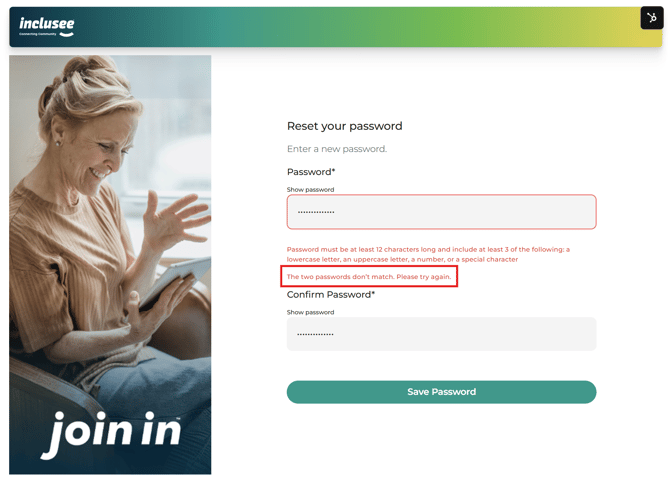
- This error means the passwords entered in the Password and Confirm Password fields do not match.
You can select Show password above each field to check what you have typed and make sure both passwords match.