How to update your personal information
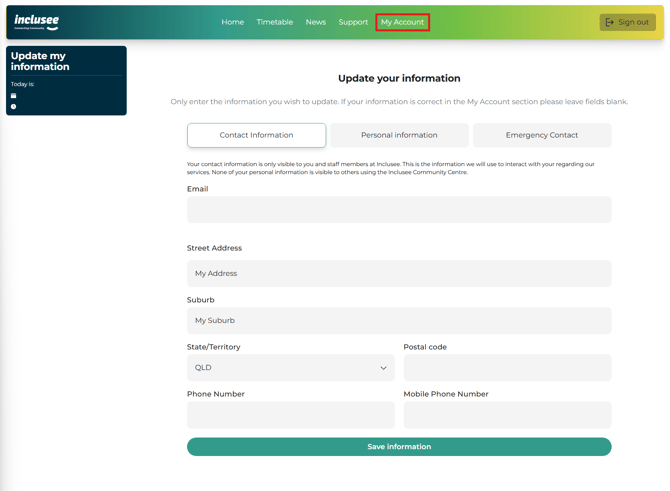
To update your personal information, go to My Account > Update My Details, choose the section you want to change (Contact Information, Personal Information, or Emergency Contact), edit your details, and click Save Information. Follow the steps below for detailed instructions. You must be logged in to access this page.
Step 1. Select the My Account tab
Click the My Account tab in the navigation bar at the top of the page.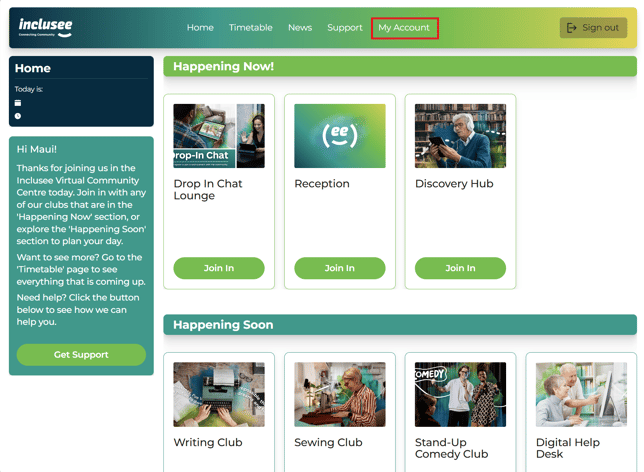
Step 2. Select Update My Details
On the My Account page, click the Update My Details button.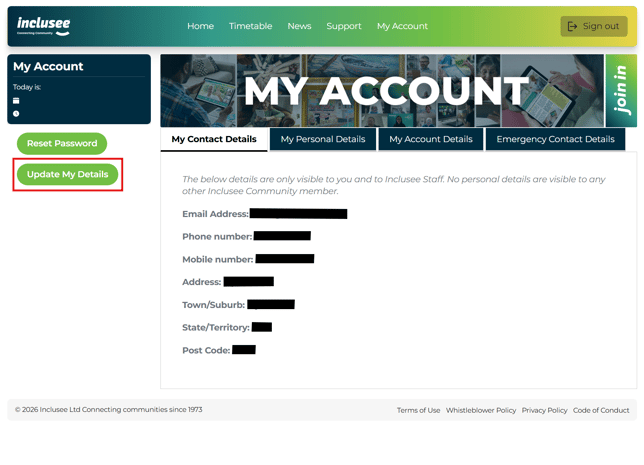
Step 3. Choose which information to update
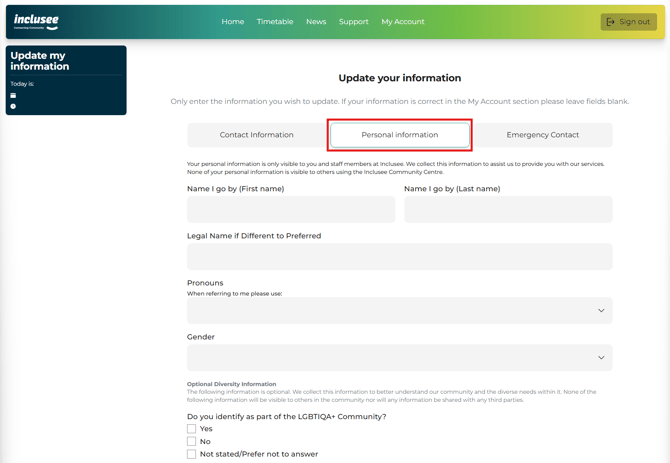
You’ll be taken to a page where you can update the following information:
- Contact Information — Update your email address, home address, and phone or mobile number.
- Personal Information — Update details such as your name and date of birth.
- Emergency Contact — Update your emergency contact information.
After making changes in any section, click Save Information to save them.
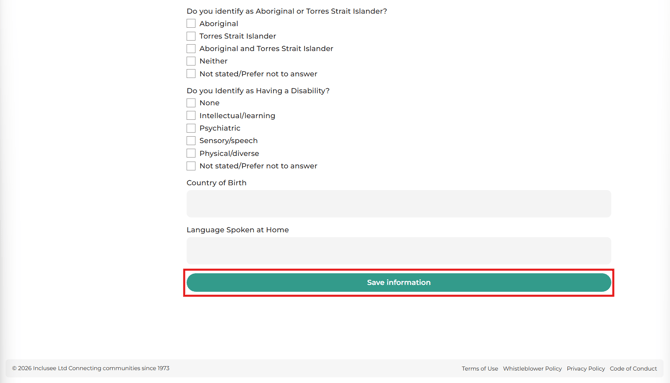
Contact Information
In this section, you can update your email address, home address, and phone or mobile number. Click Save Information to save your changes.
Personal Information
In this section, you can update details such as your name and date of birth. Click Save Information to save your changes.
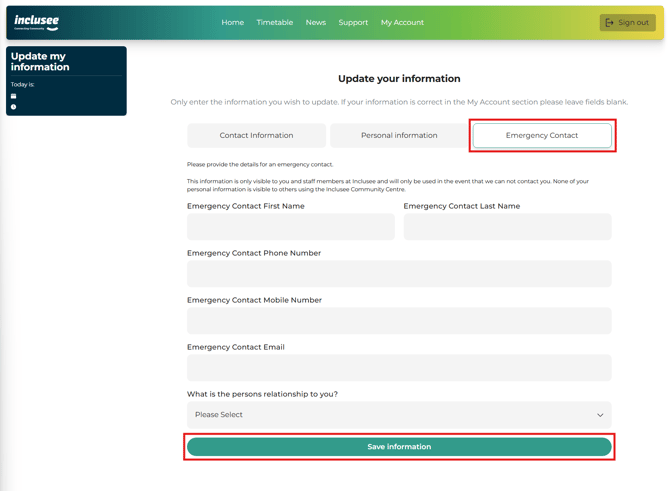
Emergency Contact
In this section, you can update your emergency contact's name, relationship, and phone number. Click Save Information to save your changes.
If you have opened Update My Details but do not need to make any changes, click any tab in the navigation bar to return to the previous page.
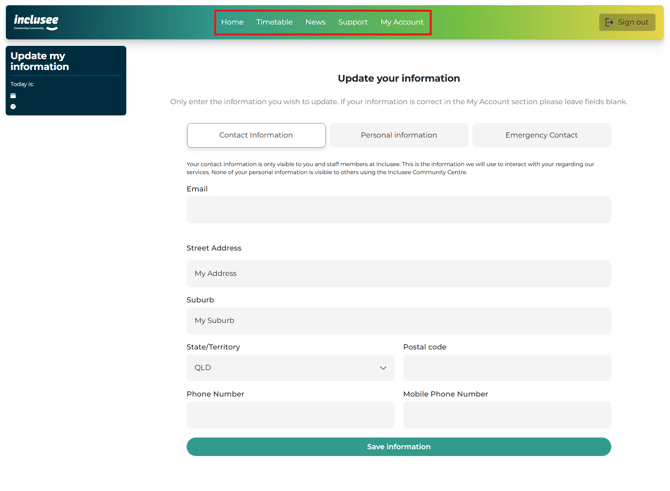
Once you've saved your changes, they may not appear immediately. To refresh the My Account page and see your updated information, click the My Account tab in the navigation bar.